Your Orthodontist,
Now in Your Pocket

Your smile stays on track with Designer Smiles by Benton in Oxford and Pell City. Just scan your teeth in the DentalMonitoring app, and Dr. John and Dr. Barry Benton can check your progress right from their phones. No extra office visits needed!

Accessing Your DentalMonitoring App

Your DentalMonitoring account must be set up by Dr. Benton before you can log in. Be sure to use the same email address used when creating your profile. If you're unsure which email was used, feel free to contact our office directly.

Option 1:

Log in With a Link
(Quickest & Easiest)

Whether you're setting up your DentalMonitoring app for the first time, switching to a
new phone, or adding the app to another device, you can easily log in and continue
your remote care journey.

1. Open the DentalMonitoring app and tap "Receive a login link.”

Login screen for DentalMonitoring app featuring instructions to access an account, including options to receive a login link or log in with a password, with a background of a person in a beige sweater.

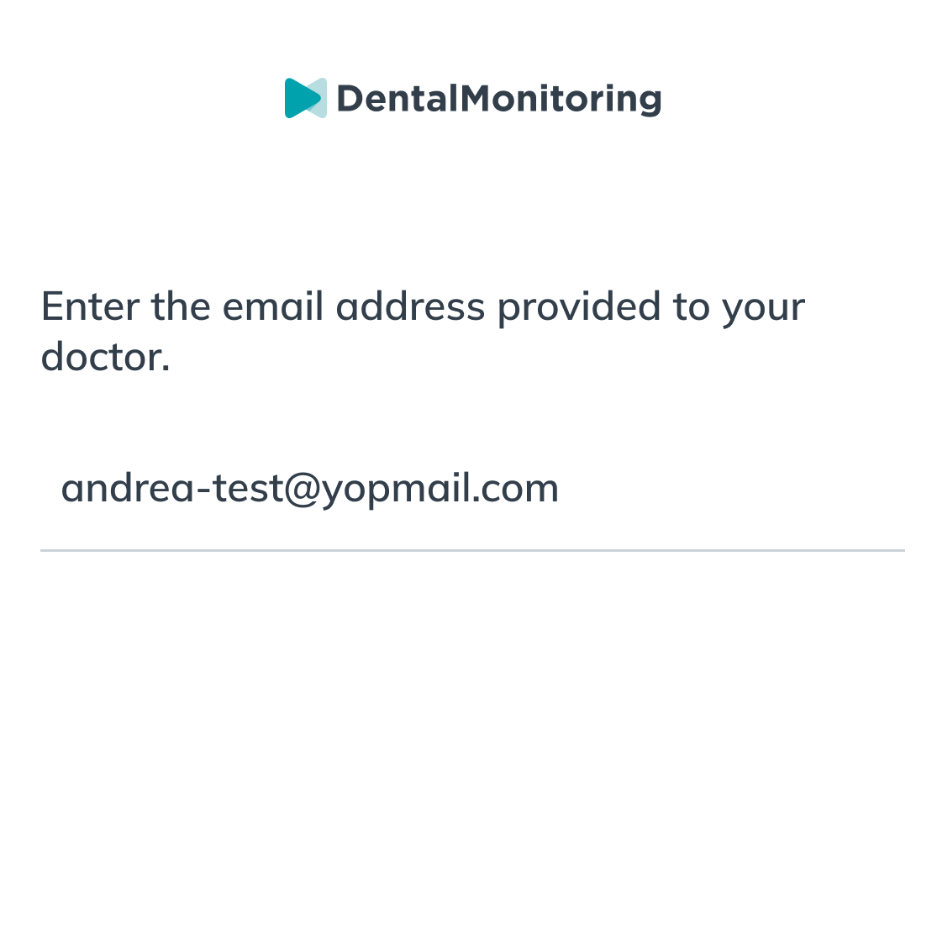
2. Enter the email address used to set up your account.

DentalMonitoring app login screen prompting users to enter their email address for orthodontic care access.

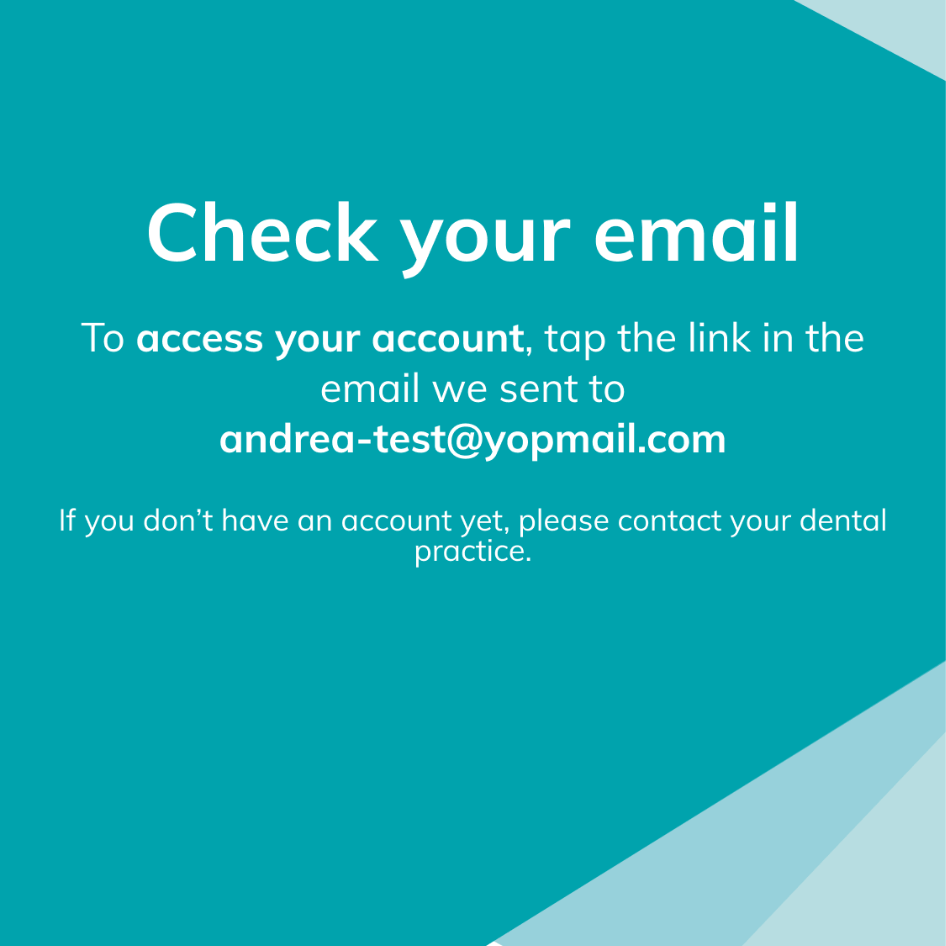
3. Tap "Open email app."

Check your email for DentalMonitoring account access instructions, featuring a prompt to tap the link sent to andrea-test@yopmail.com.

4. In your inbox, open the email from DentalMonitoring.

5. Tap "Log in to your account."
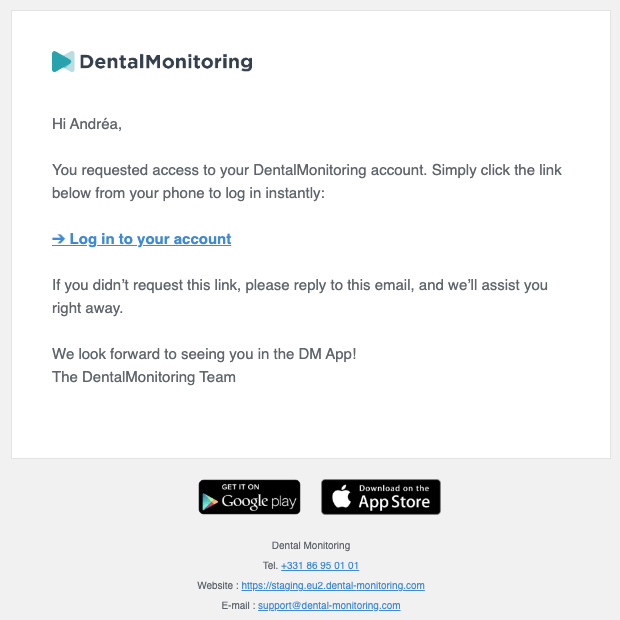
Email from DentalMonitoring with login instructions, featuring a prominent "Log in to your account" link and app download options for Google Play and the App Store.

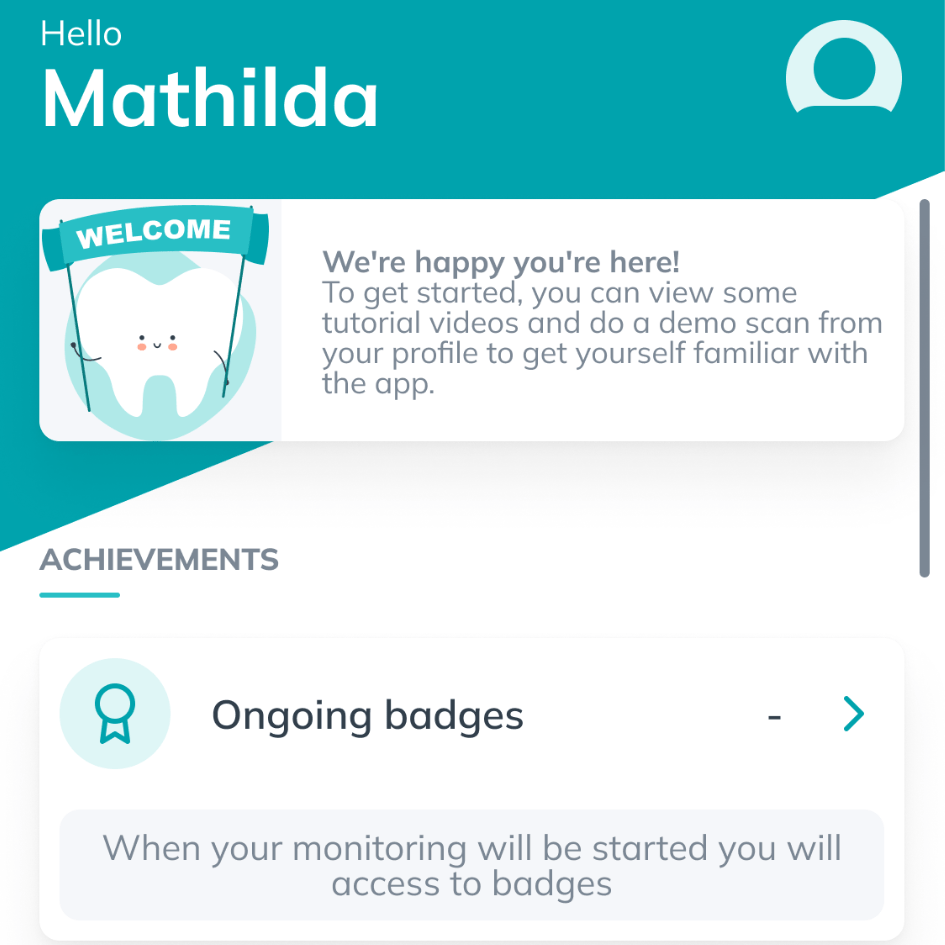
That's it-you're in!

Welcome screen of DentalMonitoring app for user Mathilda, featuring a tooth mascot and instructions to view tutorial videos and perform a demo scan, with a section on ongoing achievements and badges.
Option 2:

Log in With a Password

Prefer to create a password? Here’s what you need to do:

1. Open the DentalMonitoring app and tap "Log in with password."

Login screen for DentalMonitoring app featuring instructions to access an account, including options to receive a login link or log in with a password, with a background of a person in a beige sweater.

2. Enter your email address.

DentalMonitoring app interface displaying email entry prompt for user login, emphasizing remote orthodontic care access.

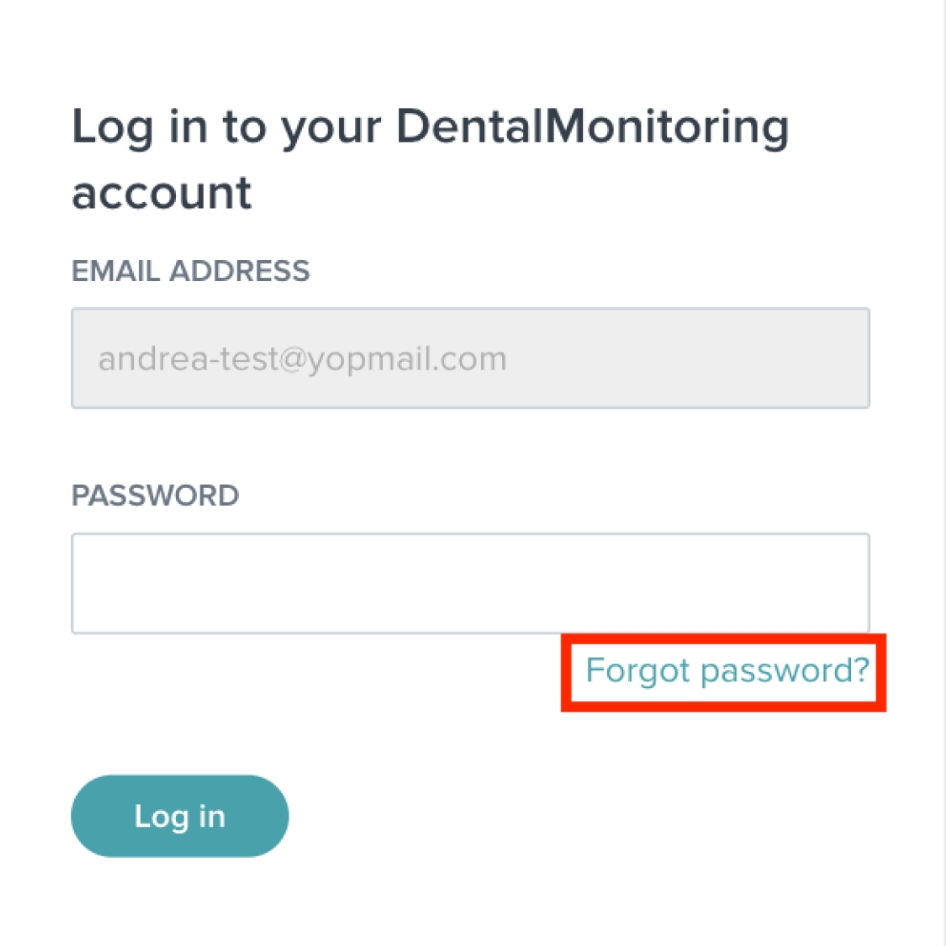
3. Tap "Forgot password."

Login screen for the DentalMonitoring app featuring fields for email address and password, with a highlighted "Forgot password?" option.

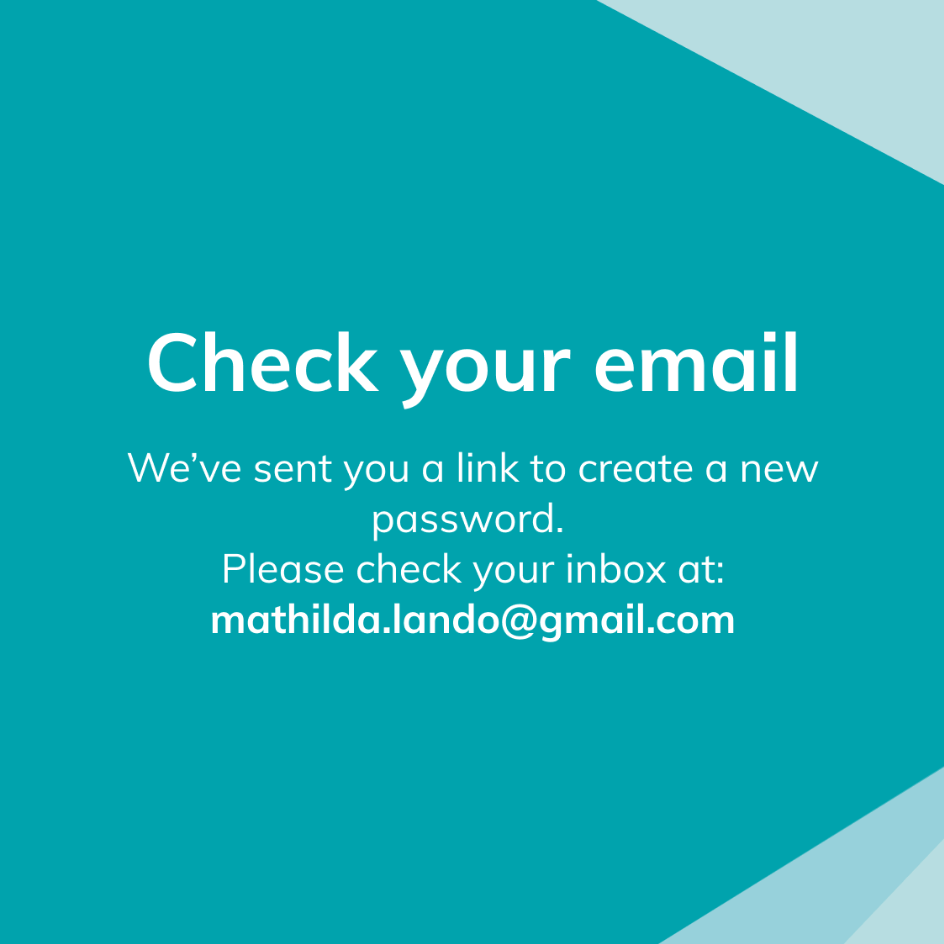
4. Tap "Open email app."

Check your email notification from DentalMonitoring with instructions to create a new password, featuring the email address for password recovery.

5. Open the email from DentalMonitoring and tap "Define your password."

Email from DentalMonitoring with instructions to define a password, featuring a prominent "Define Your Password" link and app download options for Google Play and App Store.

6. Choose a password and tap Continue.

Set your password screen from the DentalMonitoring app, featuring fields for entering and confirming a password, and a "Continue" button.

You'll now be able to log in using your email and password anytime.